Friday, February 1, 2013

MIDI Pattern Sequencer - Manual - Track events

Section "Track events" defines parameters of events in current track. Path:

[Pattern] - [Transport] - Track title - [Track events]


Drum events:

When checkbox "Use velocity for drum events" is on, for drum events velocity defines also as for usual note event in percent from 0% to 100%.

By default this checkbox is off and all drum events in the track have two fixed velocity value for normal event and for accented event.

Next two parameters define fixed velocity for normal (unaccented) and accented events. Click "Set value" button to change this value. New value will be apply to all existing and new events in the current track.


See also:

MIDI Pattern Sequencer - Manual - Editing drum tracks


[ Table of contents ]


MIDI Pattern Sequencer - Manual - Track settings

Section "Track settings" defines parameters for each track of each pattern. For correct playback of sequences on external device or application at first you need to set these parameters. At least "Output MIDI channels" and "Current MIDI device" and also "Trigger note" if you use external device or application in drum control mode. Path:

[Pattern] - [Transport] - Track title - [Track settings]


First two checkboxes in the "Track settings" define where settings are taken. When these checkboxes are off used current settings for track. When first checkbox is on the settings for current track will be taken from previous track. Of course for first track this checkbox unavailable.

Second checkbox allow taken settings from previous (by number) pattern. This checkbox unavailable for first pattern. Previous track, in turn, may also take the settings from another track. This way you can make common settings for all the tracks in the pattern, or even for tracks in all patterns.

Hint: From previous track can be taken all settings except automation settings. Automation always set for current track.

Track titles:

First and second track titles are used as information (memo) about track. If checkbox "Set track title" is on, this title will be set in pattern grid as track title and also will be used as name of track button in other modes (as example for drum pads).

These titles are optional, but additional memo can make work more comfortable.

Track events type:

The next few parameters define type of track. Each track can contain individual notes (each grid cell can contain individual note with pitch, velocity and gate time) or track can contain drum events.

Drum events have a fixed trigger note that will be sent when event plays. Drum event haven't gate time, but can set start clock offset. Velocity for drum events can be defined as accent mark or as usual velocity value (see "Track events").

Hint: When you click "Test play" current trigger note will be sent in current selected output MIDI channel (one or few) on current MIDI device.

Output MIDI channels and device:

For each track should be assigned one or some output MIDI channels. If channel not defined or set incorrectly MIDI messages will not get to destination. But don't assign all channels at once it's also wrong way. For more information on which channel you need to assign, see manual and settings of external music applications or devices.

Field "Current MIDI device" shows device that will receive MIDI messages. This device can be defined automatically or selected from "MIDI devices" list.

By default output device defined automatically. The order of automatically select the device from list of available devices depends on its type:

- External MIDI (or USB MIDI) device (adapters, dock station, etc.)
- Network connection (OSX/iOS network MIDI, rtpMIDI)
- Virtual MIDI device (background MIDI enabled application)
- Own virtual MIDI port created this sequencer

Hint: Click "Auto select" button to set automatically selecting device.

To set one of available output MIDI device from list select this device in list and click "Select device" button. In this case selected device will be assigned for this track constantly. If this device will not connected or application not running before the name of device would be "Offline" and track events will not play.

Hint: Own virtual MIDI device named "MIDI Pattern Sequencer" created for application that can receiving external MIDI messages but haven't virtual MIDI port. In most cases these application can receive messages from this device (as Garage Band for example).


See also:

MIDI Pattern Sequencer - Manual - Editing drum tracks


[ Table of contents ]


MIDI Pattern Sequencer - Manual - Shift clock

This operation provides a convenient way to change start clock of events and clocks in gate time. Path:

[Pattern] - [Edit cell] - Track title or Cell - [Shift clock]

Each event in pattern divides on 6 clocks (values 0 to 5). Start clock defines shifting time of event from beginning of current beat (bar). By default it is 0 (no shift).

Gate time defines duration of events and measured in cells (from 0 to 256 cells) and clocks (from 0 to 5 clocks). Drum events don't have a gate time. For these events could be change only start clock.


When selected the single cell you can change start clock and gate time only for this cell (or only start clock for drum event cell). When track is selected will be changing start clock and gate time for events, number of which is equal to the step change.

Shift of the event is applied to note and automation controller together. When automation and note events placed in the same cell MIDI messages are sent to the automation controller first and then for note.

Step change starts from cell with number which defined by buttons "Start cell 1" - "Start cell 4" and next cell defined by buttons "Next step +1" - "Next step +4".

For example when select buttons "Start cell 2" and "Next step +2" will change all even-numbered cells.

Hint: Simple way to adding a "Swing" (or "Shuffle") to the track it is change start clock for even-numbered cells. When select default step buttons "Start cell 2" and "Next step +2" you need to select swing range by buttons "Shift clock 0.0" (straight rhythm) - "Shfit clock 0.5" (maximum swing).

Random shift:

More creative component adds by buttons "Random gate" and "Random shift". For random change start clock or gate time clocks select one of these buttons and select range of change by buttons "Gate time 0.2" - "Gate time 1.0" or "Shift clock 0.1" - "Shift clock 0.5". Buttons "Gate time 0.1" and "Shift clock 0.0" don't make random changes.

Adjusting gate time:

Buttons "Gate +1.0" and "Gate -1.0" increase and decrease cells in gate time of current cell or cells in track (in accordance with step changes). Buttons "Gate +0.1" and "Gate -0.1" increase and decrease clocks in gate time.

Button "Reset clock" sets the start clock to 0 for current cell or cells in track (in accordance with step changes) and adds clocks in gate time to complete cell. 

Hint: All of these changes can be made at pattern playback mode and immediately listen to the new rhythm.


See also:

MIDI Pattern Sequencer - Manual - Track settings

MIDI Pattern Sequencer - Manual - Experiments


[ Table of contents ]


MIDI Pattern Sequencer - Manual - Editing drum tracks

For pattern tracks defined for drum events possible the quick edit mode. Click on "Quick edit" button to set this mode. In this mode click on drum cell will be set or reset event. Path:

[Pattern] - [Keyboard] - Track title or cell (drum type) - [Quick edit]


In normal mode drum events in current beat (bar) will be set or reset by click on one of pad buttons which assigned for each track.

Play mode:

Clicking on drum pads when select entire track will be sending MIDI messages to output but not changing events in drum track.

Accent drum events:

To accent event click "Accent" button then drum pad or cell in quick edit mode. If the cell was empty accented event will be set or current event will be accented if it is not accented before. Accent mode will be reset after setting the event.

To accent or clear accent for all drum track events click on track title to select entire track and switch to "Edit cell" mode. In this mode button "Set accent" will be set or clear accent for all track events.

Accent or velocity:

Accented or normal event differ by velocity value. In most case it is sufficient to use normal drum events and accented some. But if necessary possible to extend velocity variations. For that set the checkbox "Use velocity for drum events" in "Track events" settings. In this mode can change velocity for individual events or change velocity for all events of the track. Path:

[Pattern] - [Transport] - Track title - [Track events]

"Track events" settings also define fixed velocity values for normal and accented events. These settings are individual for each track and pattern.


See also:

MIDI Pattern Sequencer - Manual - Track settings

MIDI Pattern Sequencer - Manual - Track events


[ Table of contents ]


MIDI Pattern Sequencer - Manual - Editing automation

Before creating automation you need enable automation events for track and make setting of automation parameters. To setting automation parameters click on track title in "Transport" mode then click on "Automation" button. Path:

[Pattern] - [Transport] - Track title - [Automation]

To set automation event you need switch to "Edit cell" mode, select the pattern cell for which automation event will be assigned and click button "CC on/off" to set automation event in current value or click button "CC set value" to assign and edit event. Path:

[Pattern] - [Edit cell] - Cell - [CC on/off] or [CC set value]


Automation value also will be changing (or will be added) by changing external controller that assigned for current track automation (see automation settings).

To clear automation event click button "CC on/off" for cell which event placed.

Hint: When automation and note events placed in the same cell MIDI messages are sent for automation controller first and then for note.

When select entire track you can change (shift) all of automation events for current track. For that click button "CC change" in "Edit cell" mode. Path:

[Pattern] - [Edit cell] - Track title - [CC change]

All of automation values will increase or decrease at changing offset value. In order to leave automation without changing set the offset value to 0 before close edit panel.

Real time recording:

For recording external controller real time in "Transport" mode click button "Real time record" then select the track for recording automation and click button "Play pattern". All changing external controller will be recorded. But before you need to make setting track automation parameters, assign external controller (see "Learn" mode) and set MIDI input. Path:

[Pattern] - [Transport] - Track title - [Automation] - [Learn]

[Settings] - [MIDI input]


See also:

MIDI Pattern Sequencer - Manual - Automation settings

MIDI Pattern Sequencer - Manual - Track settings


[ Table of contents ]


MIDI Pattern Sequencer - Manual - Automation settings

To setting automation parameters click on pattern track title in "Transport" mode then click on "Automation" button. Path:

[Pattern] - [Transport] - Track title - [Automation]

Track automation events will send MIDI messages to output device and channels that defined for current track (button "Track settings"). To enable automation events and sending automation MIDI messages click on checkbox "Enable track automation".


Hint: When this checkbox is set to off automation graph not displaying on the pattern grid and automation MIDI messages will not be sending to output. But automation events aren't removed from the pattern.

Automation title could be used as additional information about current controller (as memo). To use this title in other control elements set checkbox "Set title". Otherwise, for any other automation elements will display only controller number.

Automation controller:

Checkboxes "Automation controller" select the type of output MIDI messages - CC, RPN or NRPN.

To set the controller number click "Set value" button (in the same line).

In the "Set controller number" panel you can select various ways to entering value - Decimal (only MSB for CC controller or MSB and LSB for RPN/NRPN controllers), Hexadecimal or single decimal Number (for all type of controllers).

Controller number for simple CC messages it is one-byte number from 0 to 127. RPN and NRPN controllers have two-bytes number that can be represent as value from 0 to 16383 or two values MSB and LSB from 0 to 127 (or hex values from 00h to 7Fh).

Click to "Set as input" button to set automation controller type, number and maximum value the same as defined for "Assigned controller" (if this controller defined).

Minimum and maximum controller values will limit value that can be set for the automation event. It is useful when you need to change the controller value only in certain range.

Hint: Minimum controller value cannot be greater or equal the maximum value.

Maximum controller value also defines how many data bytes sending in MIDI messages. At values up to 127 will be sent one-byte data (MSB byte only). At values from 128 and up to 16383 data will be sent as two MSB and LSB bytes.

Hint: Usually most of controllers have a single data byte with value from 0 to 127 (only MSB byte).

Assigned controller:

To assign external input controller for track automation click "Learn" button in the same line and use (turn, move or switch it) external controller to send messages to sequencer. In the "Learn input controller" panel should display external controller parameters.

Click "Set" to assign input controller or "Reset" to clear. "Close" button will close panel without changing.

Hint: In order to sequencer can receive MIDI messages from input controllers you need to define input MIDI device and channels. It is can be set in "Settings" (top panel buttons) - "MIDI input". Path:

[Settings] - [MIDI input]

Hint: Assigned input controller can be differ from current automation controller. In this case value from input controller will be sent with current controller type and number.

To reset assigned controller click button "Reset".

Display mode:

Two display mode checkboxes define how automation graph will be displayed on pattern grid. First checkbox also defines how often automation values will be send.

When first checkbox is set, automation values will change smoothly from event to event and each change will be send as output MIDI value. Ie MIDI messages will be sending even between separated events (which are visible on the pattern grid) if they values are differed. When checkbox not set, values will be switched for each next event and MIDI message will be sent only in time of event.

Hint: Smooth changing (checkbox set) very useful when events are set by editing cell through control panel. Path:

[Pattern] - [Control panel] - [Edit cell] - Cell - [CC set value]

Switching mode (checkbox clear) more suitable when automation is recorded from external controller.

Second checkbox defines how automation graph will displays on pattern grid. When it set point of event will displays on entire height of grid or each track automation graph will displays only on own track height.


See also:

MIDI Pattern Sequencer - Manual - Editing automation

MIDI Pattern Sequencer - Manual - Track settings


[ Table of contents ]


MIDI Pattern Sequencer - Manual - Clipboard

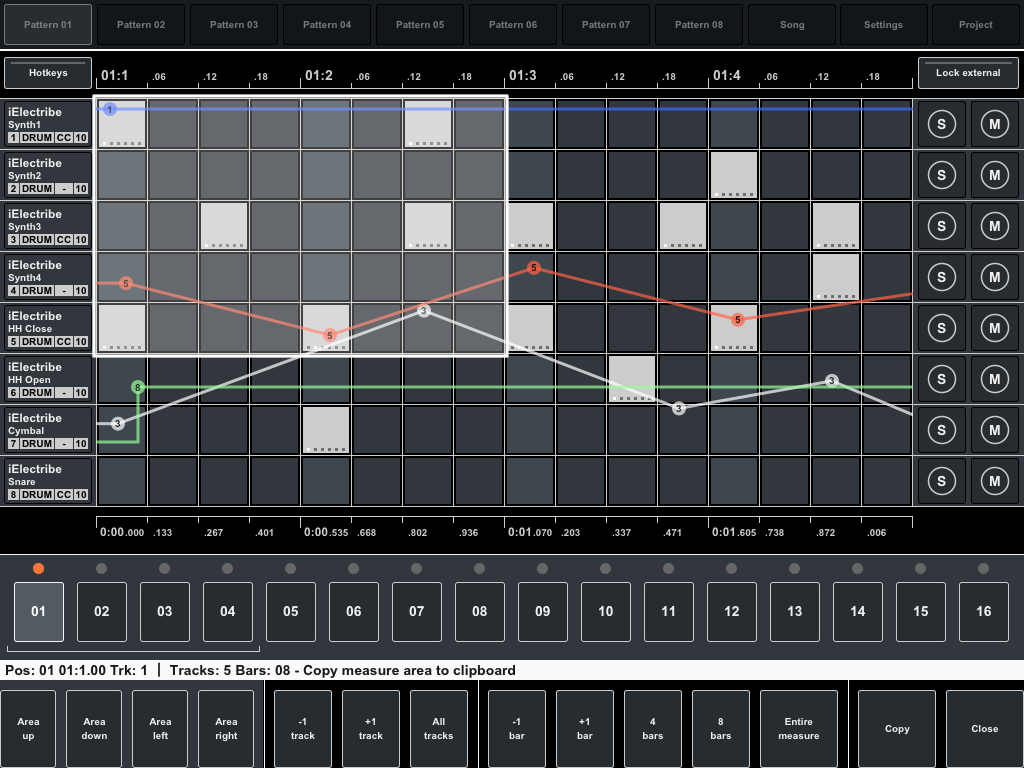
Clipboard allows you to copy and then paste entire pattern track, one measure (part of measure) or single cell.

You can paste clipboard content in any other pattern in the same project or any other project. The clipboard stores the last copied content while the application is running.


Copy and paste pattern entire pattern track. Path:

[Pattern] - [Edit pattern] - Track title - [Copy track] and [Paste track]

When the pasted content doesn't match the current track, it will be converted to match to the type of track.

Copy measure or specified area of measure. Path:

[Pattern] - [Edit pattern] - Cell - [Copy measure] and [Paste measure]

When you copy measure you can specify entire measure or select area of measure that will be copied to clipboard. When you click button "Copy measure" appear the panel for selecting area. Select area (or entire measure) and click "Copy" to complete.

When you paste measure the content of clipboard will be inserted into the current measure from position of current cell (cell pointer).

Also you can copy and paste single cell. Path:

[Pattern] - [Edit cell] - Cell - [Copy last] and [Paste last]

This clipboard named "Last note" (in "Edit cell" and "Keyboard" mode) and used not only for paste operation but also for setting velocity and gate time for new events entering from the internal keyboard (in "Keyboard" mode).


[ Table of contents ]